
Your iPhone won’t pair with Keynote on your Mac, and your presentation starts soon. Leave the slide deck alone. The problem is almost always the connection between the two devices.
Check three things: both devices are on the same Wi-Fi network, Keynote has local network permission on your iPhone, and remote control is switched on in Keynote on the Mac. If all three are fine, remove the old link and pair again.
This guide covers Apple’s built-in Keynote remote. Third-party remote apps pair differently.

Start with the basics
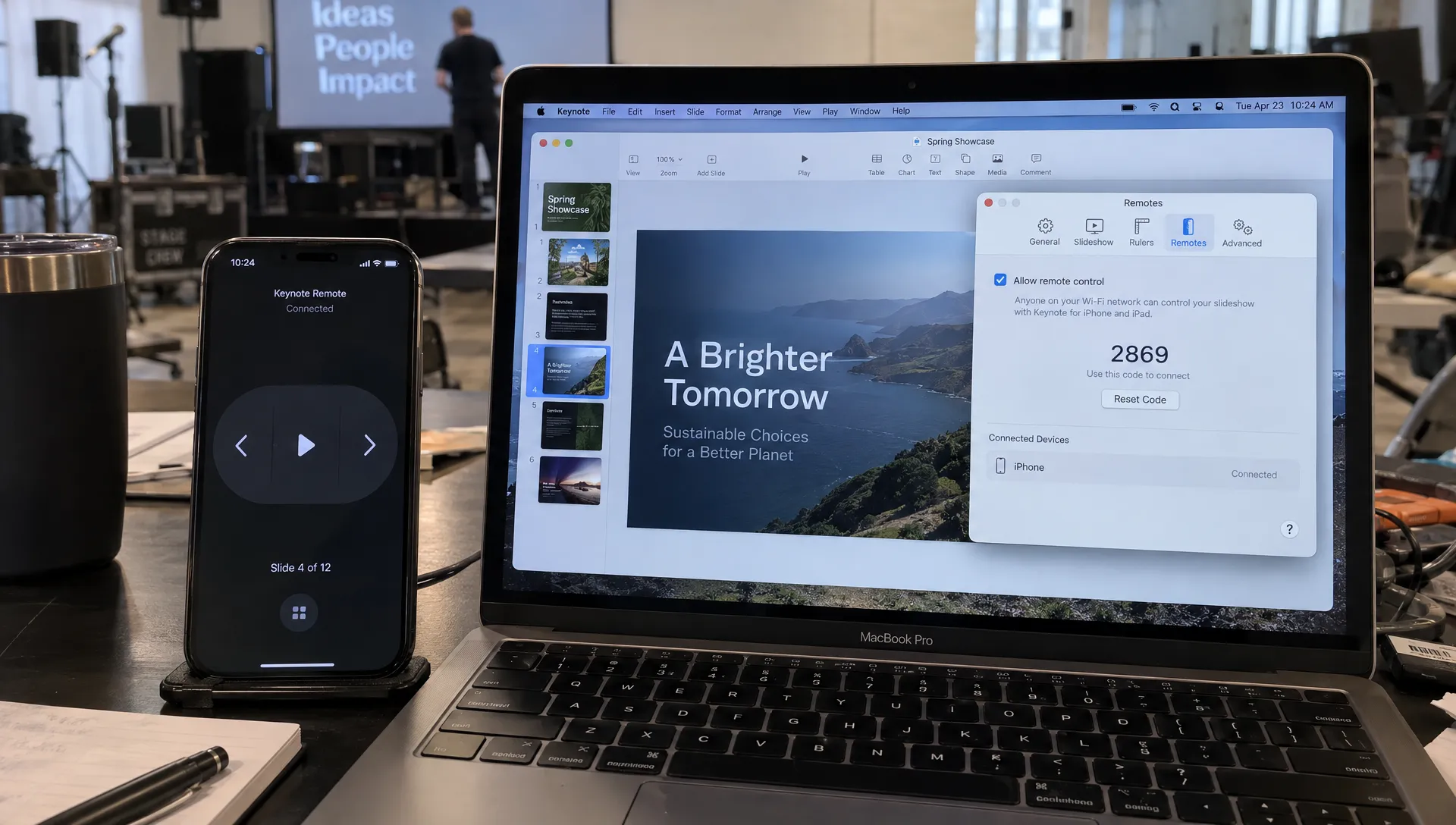
Both devices need Keynote installed. On the Mac, open Keynote, choose Keynote > Settings > Remotes (Preferences on older versions) and turn on remote control.
On the iPhone, Keynote has to be open on its remote screen, not in the editor. Being on the same network is not enough on its own.
Bluetooth plays no part in this setup, so do not pair the devices in Bluetooth settings. If a label on your screen differs from the ones here, Apple’s Keynote user guide has instructions for each version.
Pair again from scratch
Repeatedly tapping Link against an old connection rarely works. Save your presentation, then start clean.
- Open your presentation in Keynote on the Mac and keep the Mac awake.
- Turn on remote control in the Remotes settings.
- Open Keynote on your iPhone and tap the remote button.
- Click Link next to your iPhone’s name in the Mac’s Remotes pane.
- Check that the code is the same on both devices, then confirm.
- Start the slideshow from your phone and step forward and back through a few slides.
Test after every change. If you change several settings at once, you will not know which one fixed it.
For the everyday workflow, see our complete guide to Keynote Remote on Mac.
Your iPhone does not show up on the Mac
There are three usual causes.
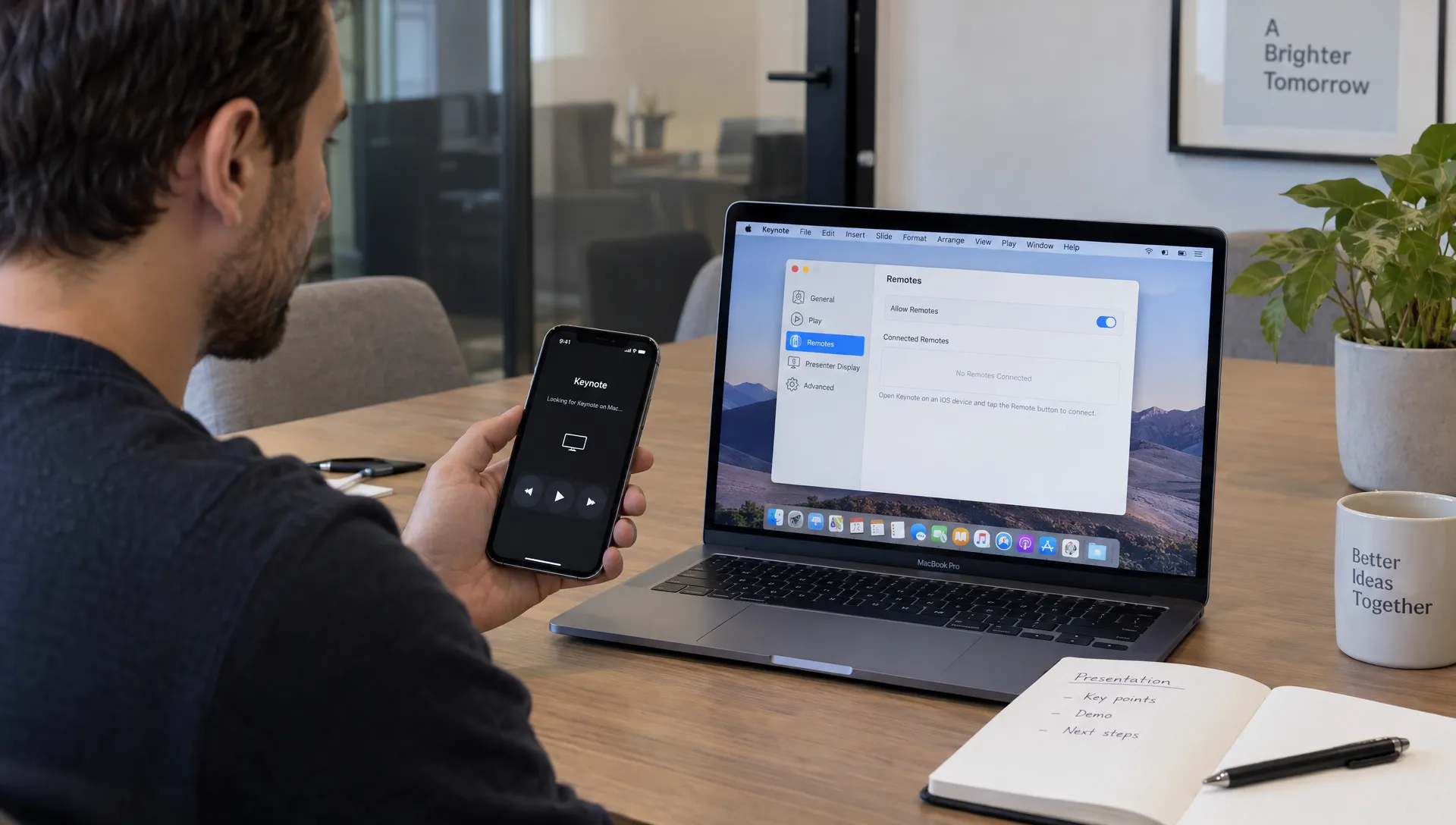
The devices are on different networks. An iPhone on cellular data, or on a guest network while the Mac is on the office network, will not be found. The same network name is not proof either. Some managed networks keep devices apart even under one name. Put both devices on a private network you trust to rule this out.
Keynote has no local network permission. On the iPhone, open Settings > Privacy & Security > Local Network and allow Keynote. On the Mac, check System Settings > Privacy & Security > Local Network. If Keynote is not listed, reopen the remote setup so the permission prompt appears. On a work device, your IT team may control this setting.
The iPhone is on the wrong screen. Keynote has to stay open on the remote screen while you watch the Mac’s Remotes pane.
The codes do not match
Cancel on both devices and start again. If the codes differ, do not confirm. You are probably linking to another nearby device, or one device is still in an old pairing session.
Old entries cause most repeat failures, especially after you replace an iPhone or restore a backup. Remove the old entry in the Mac’s Remotes settings, quit Keynote on both devices and reopen it. Fix only the entry that is causing trouble. There is no need to reset your network settings.
It works at home but not at the venue
Conference, hotel and guest networks often allow web browsing but block devices from talking to each other. Finish any sign-in page on both devices first. Then ask the venue whether the network uses client isolation or guest isolation.
If it does, pairing again will not help. Ask for an approved network instead. A personal hotspot can work, but test it with your exact devices before you rely on it.
It connects, then drops
Check whether either device switched networks, the Mac went to sleep or the iPhone left the remote screen. Test from where you will actually stand, because a connection that works next to the Mac can fail across the room.
If it drops after a specific action, such as locking the phone, repeat that action on purpose. Do not call it fixed because it reconnected once. Click through the whole deck and pause for a while to be sure.
Linked, but the slides will not move
Make sure your iPhone is controlling the right Mac and the right presentation. Then test on a slide without builds, since a slide with several builds needs several taps before the next slide appears.
Try the Mac’s keyboard too. If the keyboard cannot advance the slides either, the problem is Keynote’s playback state or an open dialog, not pairing. If the keyboard works but the phone does not, end the slideshow, reconnect and try again.
When it still fails
If a clean pairing on a private network still fails, look at the Mac’s firewall rules for Keynote and at any VPN that might block local devices. Do not switch off your protection as a routine fix. On a work Mac, ask IT to take a look.
Do not spend the minutes before your talk resetting settings. Switch to a fallback you have already tested:
- Advance slides with the Mac’s keyboard
- Ask a colleague to advance them on a cue
- Use a hardware remote, as covered in our presentation remote buying guide
A simpler way to pair
If Apple’s built-in remote keeps giving you trouble, Clicker turns your iPhone or iPad into a wireless presentation remote for Mac. It works with Keynote and PowerPoint, pairs with a QR code and shows your presenter notes on your phone. No dongle or adapter is needed.
Whichever remote you use, test it with your actual Mac and in your actual venue before you present.